Ansh verma
How to Use Sanchar Saathi on iPhone | Complete iOS Guide to Block Stolen Phones & Prevent SIM Fraud
India’s mobile ecosystem is rapidly evolving — and so are telecom security threats. From stolen smartphones to SIM fraud and scam calls, digital safety has become a daily concern for millions of users. To counter these risks, the Government of India introduced Sanchar Saathi, a telecom security platform developed by the Department of Telecommunications (DoT).
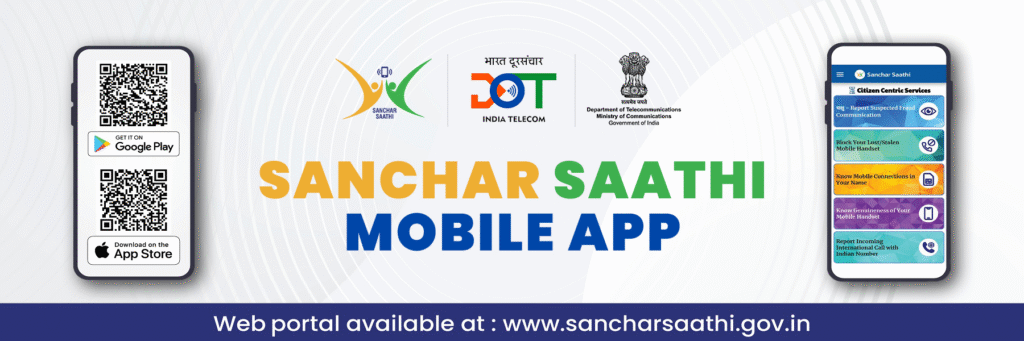
How to Use Sanchar Saathi on iPhone | Complete iOS Guide to Block Stolen Phones & Prevent SIM Fraud
In this detailed IndTech365 guide, we explain how Android users can use the Sanchar Saathi app step-by-step to secure their smartphones and mobile identity.
Installing Sanchar Saathi App in Android Step 1:
Open the Google Play Store
Search “Sanchar Saathi”
Select the official app published by the Department of Telecommunications, Government of India
Tap Install
Tip from IndTech365: Avoid look-alike unofficial apps. Always check the publisher before downloading.
Register with your mobile number.
Launch the application and select your mobile number.
You will be sent an OTP
Enter OTP to verify identity
The dashboard will now be unlocked.
Step 3: Investigate the Main Security Features
After login, Android users will see four major tools available inside the app:
1️⃣ CEIR — Block / Track Lost or Stolen Phones
If your smartphone is lost or stolen:
Tap “Block Stolen Mobile”
Enter IMEI, mobile number, and device details
Upload ID proof
Once submitted, the phone’s IMEI gets blocked nationwide and cannot be used on any network.
To unblock after recovery → use “Unblock IMEI” with the same request ID.
2️⃣ TAFCOP — Check SIMs Issued Under Your Name
This feature displays all mobile numbers registered with your identity.
Tap “Know Your Mobile Connections”
Enter OTP
View list of SIMs under your ID
If there’s a number you don’t recognise:
Tap “This is not my number” → Telecom provider investigates and disconnects unauthorized SIMs.
3️⃣ IMEI Verification: Check Before Buying a Phone
Ideal for users who buy used phones.
Check IMEI: Dial *#06# OR read from box/bill.
Enter the number in “Check IMEI”
Hit Submit
The system will immediately indicate whether the device is:
Genuine
Stolen Report
Cloned or blacklisted
4️⃣ Report Spam / Scam Calls and Messages
If you get:
Fake bank calls
Fraud loan/UPI calls
Lottery or job scam messages
Spoofed International Calls
Tap “Report Suspected Fraud” and submit information.
This helps DoT take a national action against the scam caller networks.
Why Android Users Should Use Sanchar Saathi Powered by IndTech365 Insights
Threat preliminaries: How Sanchar Saathi protects you
Stolen smartphone Blocks IMEI nationally
SIM issued without consent Sends notifications to the users and reports
Counterfeit/ duplicate mobile phones IMEI verification
Scam calls FRAUD REPORTING SYSTEM
With Android being the most used mobile OS in India, the Sanchar Saathi app offers vital protection for daily smartphone users.
☑ Quick Safety Checklist for Android Users
IndTech365 recommends:
Check active SIMs every 60 days
Check your IMEI before buying a used phone. Report every scam call even if ignored Block your phone immediately if lost. Final Thoughts by IndTech365 Sanchar Saathi is one of the most impactful digital safety initiatives launched in India. By allowing Android users to block stolen phones, verify SIM identity, check IMEI authenticity and report scam calls instantly, it turns mobile security into a user-controlled system instead of a customer-care struggle. If you own an Android device in India, using Sanchar Saathi isn’t just smart it’s essential for safeguarding your digital identity in today’s telecom landscape.
How to Use Sanchar Saathi on iPhone | Complete iOS Guide to Block Stolen Phones & Prevent SIM Fraud


 Daksh Pandey